Write or update a tag
Write a Spoolman spool's data onto a tag, refresh a tag after you changed the spool in Spoolman, or move a tag to a different spool. Every write is checked: the station reads the tag again after writing and only then saves the link in Spoolman.
Before you start
- Spoolman is connected. On Spoolman older than 0.27 it also needs the two extra fields.
- You have a blank NXP ICODE SLIX2 tag, or a tag the station wrote before. See Which tags work.
- Exactly one tag is on the reader, and it stays there until the station says it is done.
What Manage tag offers
Touchscreen: tap MANAGE TAG on Home or Tag in the bottom bar. Browser: click Manage tag on the Dashboard.
| Tag on the reader | Touchscreen shows | Touchscreen buttons | Browser buttons |
|---|---|---|---|
| None | "PLACE A TAG", "Set an NFC tag on the reader." | DONE | — |
| Blank | "BLANK TAG", "Ready to use" and the tag's UID | WRITE TAG | Write tag for a spool |
| Linked to a spool | The filament and "Linked to spool #N" | UPDATE TAG, USE FOR ANOTHER SPOOL, CLEAR / REUSE | Update tag, Use for another spool, Clear / Reuse |
| Filament data, no spool linked | "Not linked to a Spoolman spool yet" | LINK TO A SPOOL, CLEAR / REUSE | Link to a spool, Clear / Reuse |
| Filament data, likely matches found | "This may be one of your Spoolman spools." | CHOOSE WHICH SPOOL, LINK TO A SPOOL, CLEAR / REUSE | Link to a spool, Clear / Reuse |
| Cannot be used | "This tag can't be used as it is" | DONE | — |
A blank tag always shows as Blank here, even when Spoolman links it to a spool and Home shows that spool (see Identify a spool): the tag itself holds no filament data yet.
WRITE TAG, LINK TO A SPOOL and USE FOR ANOTHER SPOOL all lead to the same steps below. CLEAR / REUSE is covered in Clear and reuse a tag. If the page shows "Finish writing this tag" or a similar title instead, an earlier operation was interrupted; see Finish an interrupted tag operation.
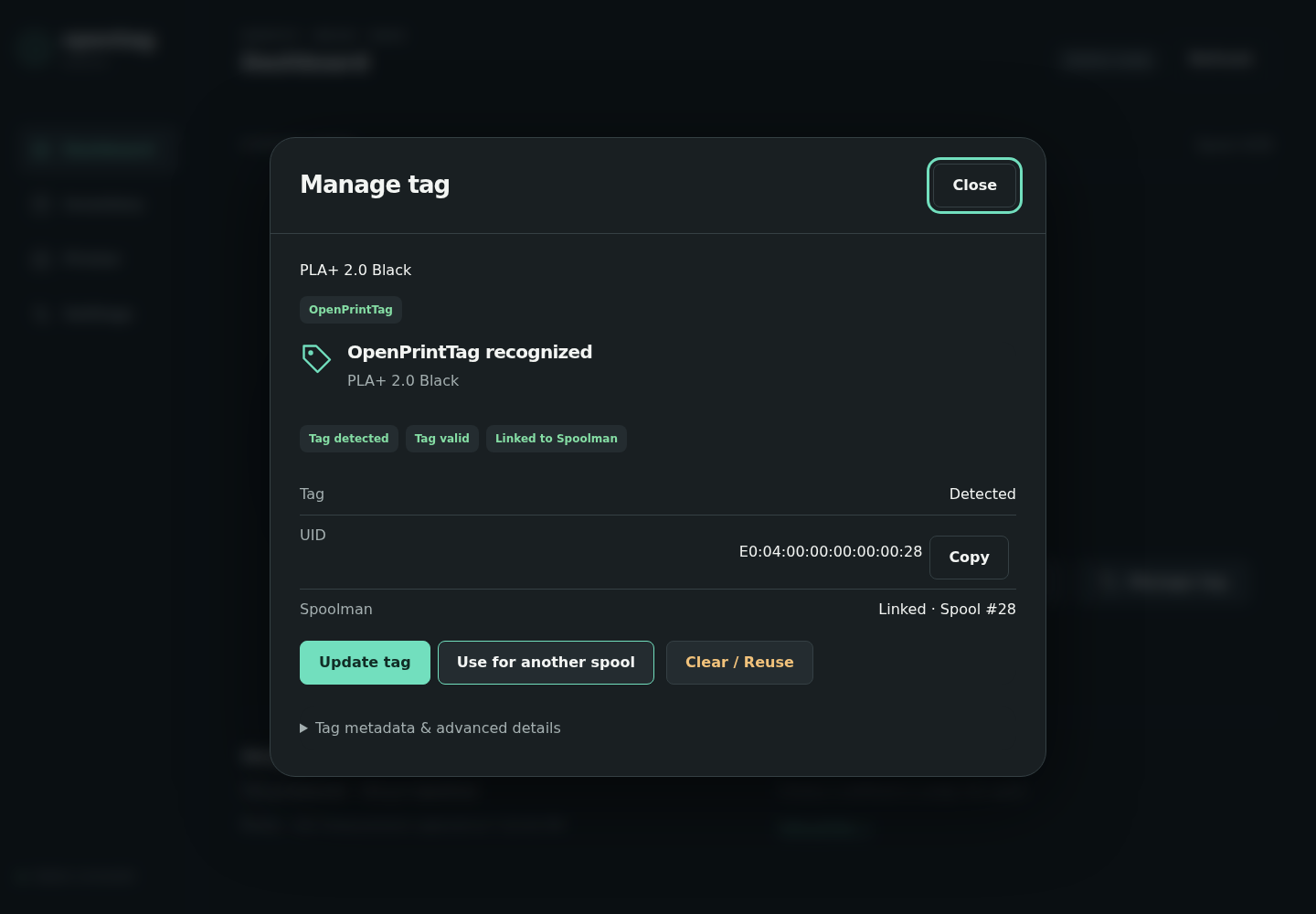
Demo data.
Write a tag on the touchscreen
- Tap WRITE TAG (blank tag), LINK TO A SPOOL or USE FOR ANOTHER SPOOL. From Home with a blank tag, the first button already reads WRITE TAG.
- Answer "How do you want to choose the filament?":
- MY SPOOLS if the physical spool already exists in Spoolman.
- MY FILAMENTS if Spoolman has the filament but not this spool yet. The station creates the spool for you (see step 5).
- Find the entry. The list shows three rows at a time. Use PREV and NEXT to page, or tap SEARCH, type part of the name and tap SEARCH on the keyboard. Spool rows read "#N Maker Name" and "NNN g remaining"; filament rows read "Maker Name" and the material and weight. How search works explains what to type.
- Tap the row.
- A spool: the station reads the tag straight away ("Reading tag", with a progress bar) and opens the review page (step 6).
- A filament: "Use this filament?". Tap CREATE A SPOOL.
-
Only after CREATE A SPOOL: the page "Create physical spool" shows three lines, each ending in EDIT. Tap a line to change its value.
Line Starts as Initial The filament's weight in Spoolman, or 1000 g if it has none. Remaining The same as the initial weight. Lower it for a part-used spool. Empty spool The filament's empty-spool weight, else the vendor's. Reads NOT SET when neither has one; you must enter it. Tap CREATE SPOOL. The station creates the spool in Spoolman, reads the tag and opens the review page by itself.
-
Read the review page. It shows the spool's name and number and a ring in the spool's colour.
- Normally the title is "Ready to write" with "Replaces the filament data on the tag."
- When the tag belongs to another spool, the title is "Move this tag?" with "From spool #A to #B. Spool #A stays in your inventory."
- When the tag holds another spool's data that Spoolman does not link: "This tag holds another spool's data. Writing replaces it."
- When some of the spool's details cannot be stored on the tag, a line such as "Not written: material, material type" lists them. See Details that are not written to the tag.
Tap WRITE TAG. This is the only confirmation. 7. Leave the tag on the reader. The page shows "Checking tag", then "Writing tag" with "Keep the tag on the reader." and a progress bar, then "Saving link in Spoolman" with "The tag is already written." 8. Done: "TAG READY", the spool's name, "Spool #N - verified" and the colour ring. Tap WEIGH, ASSIGN TO PRINTER or DONE.
BACK takes you one page back at any point before WRITE TAG. Nothing is written to the tag before that tap.
Where the link is saved
After the tag is written and checked, the station saves the link in Spoolman:
- If the spool extra fields
nfc_uidandopentag_instance_uuidexist, it fills them. - On Spoolman 0.27 or later it also adds the tag to the spool's tag list, so you can see the tag on the spool in Spoolman. It then checks that the tag is linked to this spool and no other.
Write a tag in the browser
You can start in three places: Write a new tag on an empty Dashboard, a button in the Manage tag dialog, or the Inventory page, which holds the same picker.
The dialog is titled "Create OpenPrintTag" and shows four steps: Select → Preview → Write → Done. An Edit step appears only while you edit a spool or filament.
- Select. Choose a tab: Spools, Filaments or Vendors.
Type into Search and, if you like, Material (for example
PETG), then click Search. Clear empties the search. Previous and Next page through the results, eight per page (fewer if Spoolman's records are very long).- Clicking a vendor shows that vendor's filaments.
- Clicking a filament shows the spools of that filament.
- Click a spool to select it.
- If the filament has no spool yet, open Create new physical spool, fill in Initial filament (g), Used weight (g), Empty spool (g) and, if you want, Price (Spoolman currency), Location, Lot / batch and Notes. Click Create spool. The dialog then shows the new spool; click Preview tag.
- If you selected an existing spool, click Continue. The station reads the tag at once (a progress bar fills while it reads).
- Preview. "Ready to write" shows the spool, a spool picture in its colour and what the tag will contain. If some details cannot be stored on the tag, a box headed "Not written to the tag:" lists each one with its value and the reason. See Details that are not written to the tag. Click Write tag. For an ordinary write there is no further question. The browser asks once more, with the button in red, only when the write replaces something: when the tag belongs to another spool ("Move the tag from spool #A to #N. The previous spool stays in inventory."), or when it holds other data or an interrupted write.
- Write. The banner shows the step and a block count, for example "Writing tag · 12 / 40 blocks", and "Keep the tag on the reader." While the link is saved: "The tag is written. Saving the link in Spoolman…"
- Done. The heading reads "✓ OpenPrintTag written and verified" and the banner "Tag and Spoolman association verified; ready to weigh and assign". Click Done.
Edit Spool and Edit filament on the Select step open the editor; Update consumed weight prepares a write that only refreshes the used weight on the tag. Cancel and Back to Select leave or step back without writing.
Details that are not written to the tag
A tag has little room, and some details from Spoolman do not fit or have no place on it. The review page lists them before you write, so nothing is left out silently:
| Detail | Not written when |
|---|---|
| Name | Longer than 63 characters |
| Maker (vendor) | Longer than 31 characters |
| Material | Longer than 7 characters, for example "PLA Matte" |
| Material type | The material is not exactly one of PLA, PETG, TPU, ABS, ASA, PC, PCTG, PP, PA6, PA11 or PA12. "PLA Matte" is not; "PLA" is. |
| Article number | Longer than 16 characters |
| Colour | The filament has several colours instead of one |
Accented and non-Latin letters take more room, so the limit can be reached with fewer of them.
The touchscreen names up to three of these, for example "Not written: material, material type", and adds "and N more" if there are others. The browser shows each one in full, for example "Material “PLA Matte” — longer than 7 characters".
You can still write the tag: everything else is written, and the spool keeps all its details in Spoolman. To get a detail onto the tag, shorten it in Spoolman (or, for the material, use one of the material types above) and write the tag again.
How search works
The same rules apply on the touchscreen and in the browser.
- Your text is compared with the filament name in Spoolman. Capital letters do not matter, and part of the name is enough.
- Only if no name matches, the same text is compared with the vendor (maker) name.
- Nothing else is searched: not material, colour, spool number, location, lot or notes.
- The text is treated as one piece. "Prusament Galaxy" finds nothing if the filament is named
"Galaxy Black" and the vendor "Prusament", even though the row is displayed as
"Prusament Galaxy Black". Search for
Galaxyor forPrusament, not both. - Material is a separate filter and exists only in the browser (Material box). On the touchscreen, do not type "PLA" unless it is part of the filament's name.
- Results come in Spoolman order (lowest number first), eight per request. The touchscreen shows three of them per screen; the browser shows all eight.
- Archived spools are not listed.
- Search text can be up to 64 characters.
If a filament you know is in Spoolman does not show up:
| Check | Why |
|---|---|
| Search for one word from its name as written in Spoolman | Maker and name together never match. |
| Tap NEXT / click Next | Without a search, the list starts at the lowest Spoolman number. |
| Look under MY FILAMENTS / Filaments, not spools | A filament without a spool is not in the spool list. |
| Open the spool in Spoolman and see whether it is archived | Archived spools are hidden. |
On the touchscreen an empty result reads No matches for "…". and "Search looks at names and makers."
An empty list reads "No spools in Spoolman yet." or "No filaments in Spoolman yet."
Past the last entry it reads "End of the list."
The browser's "Refine this page" (Color, Status) only hides rows on the page you are looking at.
Update a tag after changing the spool in Spoolman
Use this when the tag is already linked and you changed something in Spoolman, for example the filament's name or the spool's weights.
- Touchscreen: MANAGE TAG → UPDATE TAG, then the review and write pages as above.
- Browser: Manage tag → Update tag. The dialog opens at the preview for the linked spool.
Only the parts of the tag that differ are written. If nothing differs, the touchscreen shows "Tag already up to date" and "Nothing needs to be written." with a greyed-out NOTHING TO WRITE.
Saving a weight to Spoolman does not update the tag by itself. What ends up on the tag is listed in What is stored on a tag.
Move a tag to another spool
Use USE FOR ANOTHER SPOOL (touchscreen) or Use for another spool (browser) on a linked tag and pick the new spool. The station asks you to confirm the move, rewrites the tag for the new spool and moves the link in Spoolman (on Spoolman 0.27 or later, also from the old spool's tag list to the new one's). The previous spool stays in Spoolman; it just no longer has a tag.
If you want an empty tag instead, use Clear and reuse a tag.
If something goes wrong
On the touchscreen, problems appear on a page titled "Needs attention" with the message and BACK. In the browser the message appears in the banner at the top of the dialog.
| What you see | What it means | What to do |
|---|---|---|
| "Spoolman is missing the Spool extra field …" | Your Spoolman is older than 0.27 and the two extra fields do not exist, or are not of type Text. | See Required extra fields. |
| "Spoolman links this tag to filament #N. Remove it from that filament in Spoolman first." | In Spoolman, the tag is linked to a filament, not a spool. Nothing was written. | In Spoolman, remove the tag from that filament, then start again. The station never removes it for you. |
| "Spoolman links this tag to two different spools; remove one of the links in Spoolman first" | Two spools in Spoolman's tag list hold this tag. Nothing was written. | In Spoolman, remove the tag from the spool it is not on, then start again. |
| "This tag is linked to spool #A by its extra field and to spool #B in Spoolman's tag list. Remove one of the links in Spoolman first." | The nfc_uid field and Spoolman's tag list name different spools. Nothing was written. |
In Spoolman, remove the wrong link (empty the field, or remove the tag from the spool), then start again. |
| "Enter the empty spool weight first (weigh an empty reel of the same type, or use the maker's value)." | You tapped CREATE SPOOL with Empty spool: NOT SET. | Tap the line and enter the weight of the empty reel. |
| "Check the spool weights: remaining cannot be more than initial, and none can be above 100000 g." | The three weights do not fit together. | Correct them and tap CREATE SPOOL again. |
| "Station is busy. Please try again." | Another request was still running. | Try again. |
| "This is taking longer than usual." with BACK TO HOME | A step that waits for Spoolman has shown no progress for 45 seconds. | Tap BACK TO HOME, check Spoolman, then open MANAGE TAG again. |
| "Tag already up to date" | The tag already holds this spool's data. | Nothing. |
| "Link not saved yet" (touchscreen) or Retry Spoolman link / Skip linking (browser) | The tag is written, but Spoolman could not be updated. | See Finish an interrupted tag operation. |
| "Finish writing this tag" (touchscreen) or Resume tag workflow (browser) | A write was interrupted. | Put the same tag back and follow Finish an interrupted tag operation. |
| "This page is too large to show; narrow the search." | Even a single result is bigger than the station can hold (it already tried showing fewer results per page). | Search for a more specific name. |
| Any other write error | The tag or reader refused the write. | See Tag write or clear fails. |