Assign a spool to a toolhead
Tell FilaBridge which spool is loaded in which toolhead of your printer, so the filament a print uses is counted against the right spool in Spoolman.
Before you start
- FilaBridge and your printer are set up on the station. See Set up FilaBridge for a Prusa XL.
- The spool is on the station and its tag is linked to a Spoolman spool (Home shows "Spool #N").
- The printer is idle. Assigning during a print is possible but asks for an extra confirmation.
The toolhead buttons are called T1 to T5 on the station. T1 is the first toolhead. In its confirmation questions the touchscreen uses FilaBridge's own name for the toolhead when FilaBridge has one, so you may read that name where this page shows "T2". The browser's Unassign question does the same.
Steps
Touchscreen
- Tap ASSIGN on Home, or Assign in the bottom bar. After writing a tag you can also tap ASSIGN TO PRINTER.
- Check the printer name at the top. Under it you see "Connected", "Offline" or "Checking connection".
- Look at the five buttons T1 to T5. Each shows "Empty" or the spool it holds, for example "#28". The spool that is on the station right now is marked "(this spool)".
- Tap the toolhead you loaded the spool into.
- Confirm the question "Assign spool?" with Assign. Cancel changes nothing.
- The status line reads "Assigning; checking with FilaBridge...", then "Assigned. FilaBridge confirmed the spool is on this toolhead."
Browser
- On the Dashboard, click Assign. A dialog titled "Assign" plus the spool's name opens with the message "Choose a toolhead."
- Click a toolhead tile. Tiles read "T1 Empty" or "T2 Spool #27". The message changes to "T2 selected".
- Click Assign to T2 (the button names the toolhead you chose).
- Wait for "Assigned and verified on the printer." The button then reads Assigned.
The browser Printer page shows all toolheads of the printer. Each has Assign current spool (or Change when it already holds a spool), which opens the same dialog.
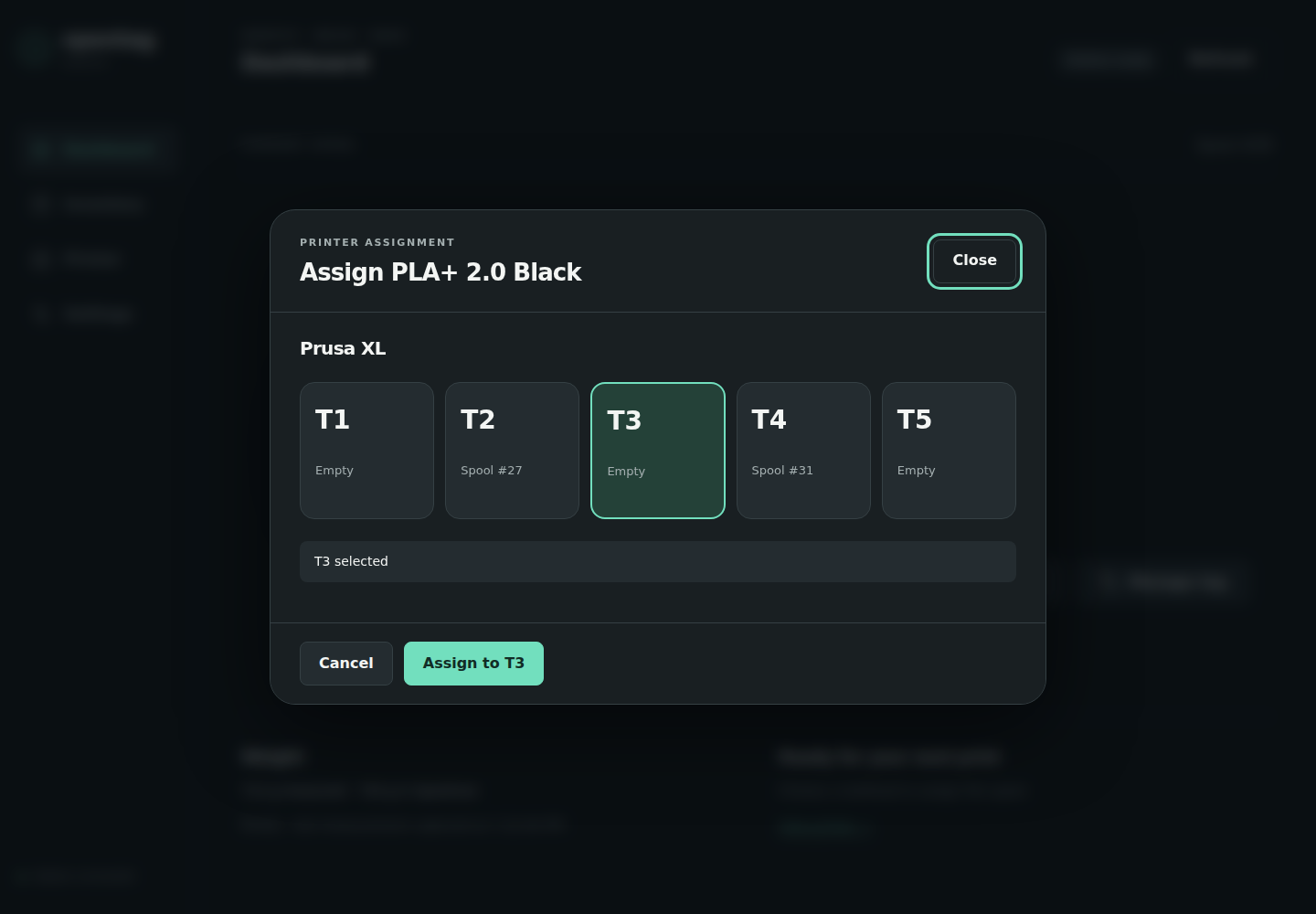
Demo data.
How the station checks the result
After sending the assignment, the station asks FilaBridge again which spool the toolhead holds. It reports success only when FilaBridge answers with the spool you chose on the toolhead you chose. If the answer cannot be read or does not match, you get an error instead of a success message.
Nothing is stored for later. If FilaBridge is offline, the request is refused and you try again when it is back.
Replace the spool in a toolhead
If the toolhead already holds a different spool, the station asks before replacing it.
- Touchscreen: "Replace spool?" with "T2 currently contains spool #27. Replace it with spool #28?" Tap Replace to continue or Cancel to leave the toolhead as it is.
- Browser: after you click a tile, the message reads "T2 currently holds spool #27. You will be asked to confirm replacement." When you click Assign to T2, the browser asks "This toolhead is occupied by spool #27. Replace it with spool #28?" Choose OK or Cancel.
The replaced spool stays in Spoolman. It is only no longer assigned to that toolhead.
Remove a spool from a toolhead
Browser only: open the Printer page and click Unassign on the toolhead. Confirm "Unassign spool #27 from T2?". There is no unassign on the touchscreen.
Assign while the printer is printing
The station does not block an assignment during a print. It warns you and asks for a deliberate second confirmation, because changing the spool mid-print can make FilaBridge count filament against the wrong spool.
| Printer state | Touchscreen dialog | Buttons |
|---|---|---|
| Printing, paused or waiting for attention | "ACTIVE PRINT" with "This printer is actively printing. Mapping T2 may corrupt consumption accounting." | Cancel / Assign anyway |
| The same, and the toolhead holds another spool | "ACTIVE PRINT" with "This printer is actively printing and T2 contains spool #27. Replacing it may corrupt consumption accounting." | Cancel / Replace anyway |
| State unknown, printer offline or not configured | "PRINTER STATE UNVERIFIED" with "This printer state cannot be verified. Mapping T2 may corrupt consumption accounting." | Cancel / Assign anyway or Replace anyway |
After Assign anyway or Replace anyway the status reads "Assigning anyway; checking with FilaBridge...".
The browser asks the same question in one prompt: "Printer state is “printing”. This advanced override can corrupt consumption accounting. Continue?" Choose OK or Cancel.
If you are not sure, tap Cancel and assign when the print has finished.
Why a toolhead button is greyed out
On the touchscreen a toolhead button can be tapped only when all of these are true:
- A spool that is linked to Spoolman is on the station.
- FilaBridge is online and is a version the station can assign with (see Set up FilaBridge for a Prusa XL).
- FilaBridge reports that toolhead for the selected printer.
- The toolhead is enabled in the station's toolhead profiles (browser: Settings → Advanced → Edit Toolhead profiles, tick Enabled).
- No other request is still running.
The status line at the bottom of the Assign page shows "Spoolman ONLINE/OFFLINE/WAITING FilaBridge ONLINE/OFFLINE/WAITING".
In the browser, Assign on the Dashboard is unavailable until the spool is linked.
If something goes wrong
| What you see | What it means | What to do |
|---|---|---|
| "No printer configured" and "Choose a printer in Settings." | No printer is selected. | See Set up FilaBridge for a Prusa XL. |
| "Printer unavailable. Check FilaBridge in Settings, then try again. Nothing has been assigned." | The browser has no printer to show. | Check the FilaBridge address and printer in Settings. |
| "Station is busy. Try the assignment again." | Another request was still running. | Wait a moment and try again. |
| "Place a spool that is linked in Spoolman on the station first." | No linked spool on the station. | Put the linked spool on the station. |
| "Choose a printer in Settings > Wi-Fi & services first." | No printer is selected, or the selected printer is not in FilaBridge's list. | Choose the printer again: Settings → Wi-Fi & services, PRINTER step. |
| "FilaBridge is offline; toolhead assignment was not queued" | FilaBridge cannot be reached. Nothing was sent. | Check FilaBridge, then assign again. |
| "FilaBridge is connected read-only; mapping capability is unavailable and no assignment was queued" | Your FilaBridge version is not one the station assigns with. | See supported FilaBridge versions. |
| "Sent to FilaBridge but could not be verified (reason). Refresh printers before retrying." | The request was sent but the check afterwards failed. The toolhead may or may not have changed. | Look at the toolhead on the Assign or Printer page before trying again. |
| "FilaBridge assignment verification failed: mapped spool does not match" | FilaBridge reports a different spool than the one you chose. | Check the toolhead in FilaBridge, then assign again. |
| "Assignment was not verified. Check the station message and refresh the printer before trying again." | Browser summary of a failed assignment. The button reads Close and retry. | Read the message shown by the station, then try again. |
| "The spool changed. Close this dialog and select the current spool again. Nothing was assigned." | The spool on the station changed while the dialog was open. | Close the dialog and start again. |
| "Toolhead assignment precondition is stale; refresh before confirming" or "Spool or printer snapshot changed while the assignment was pending; refresh and retry" | The toolhead, spool or printer state changed between your tap and the confirmation. | Start the assignment again. |
| "Selected local toolhead profile is disabled" | The toolhead is switched off in the station's toolhead profiles. | Enable it under Settings → Advanced → Edit Toolhead profiles in the browser. |
| "Selected printer no longer exists in FilaBridge" or "Selected toolhead no longer exists in FilaBridge" | FilaBridge no longer lists it. | Check the printer in FilaBridge and the printer chosen on the station. |
| "FilaBridge authentication was rejected" | The token is wrong or missing. | Enter the token under Settings → Integrations → Edit FilaBridge. |
More causes and fixes: Printer assignment fails.